
TiviMate IPTV Player Guide (2026): Setup, Features & Tips
TiviMate IPTV Player is a dedicated television media player engineered specifically for Android TV, Google TV, and Amazon Fire OS remote controls. Built to replicate the fast, grid-style navigation of a high-end cable box, TiviMate lets cord-cutters browse thousands of live channels, manage custom TV guides, and replay past programs without touch-screen clutter.
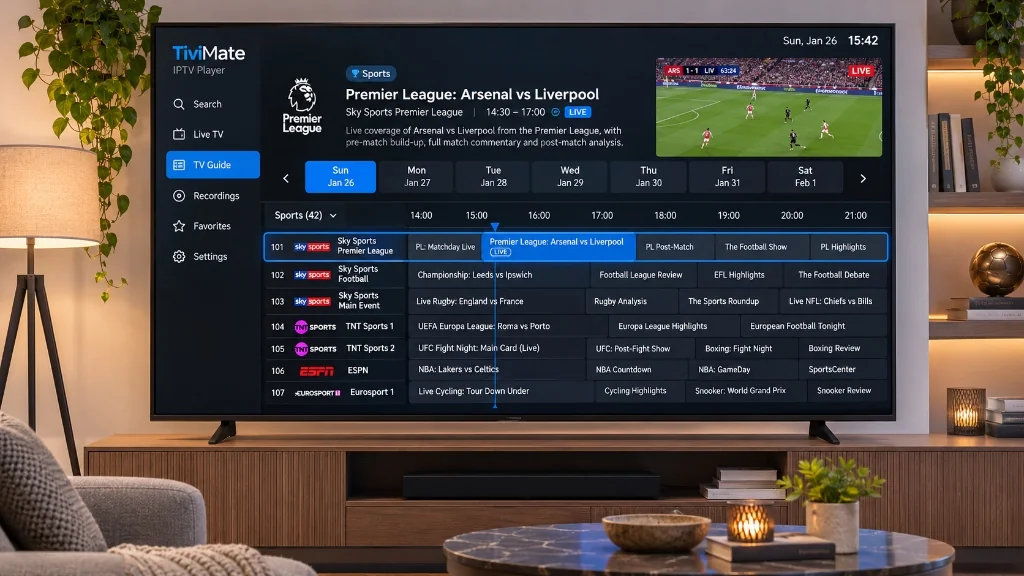
Whether you are installing TiviMate (including recent 5.3.x builds) on a new Firestick for the first time or tuning buffer settings for 60fps NFL games, this walkthrough covers installation, Free vs Premium differences, and playback optimization.
Quick Compatibility Check: Where TiviMate Works (and Where It Does Not)
Before downloading anything, check your hardware platform. TiviMate runs natively on Android-based television operating systems and does not support non-Android TV software:
| Device / Operating System | Native TiviMate Support? | Best Path Forward |
|---|---|---|
| Amazon Fire TV Stick (4K, 4K Max, Cube) | Yes (via Downloader APK) | Install Downloader and enter official code 272483 |
| Android TV & Google TV (Nvidia Shield, Sony, TCL) | Yes (Google Play Store) | Install directly from Play Store or APK |
| Samsung (Tizen) & LG (webOS) Smart TVs | No | Use native IPTV Smarters Pro, or plug in a Firestick |
| Apple TV (tvOS) & iOS | No | Use Apple-native players per our Apple TV Guide |
| Roku TV & Roku Sticks | No | Plug an Android TV box or Firestick into a spare HDMI port |
You can review complete player options across every television brand on our Supported Streaming Devices page.
TiviMate Free vs TiviMate Premium: Do You Need to Upgrade?
TiviMate offers a free tier to test basic live television, plus an optional paid Premium unlock managed through Google Play or the TiviMate Companion app (for Firestick users without Google Play). Understanding what sits behind the paywall helps you decide before subscribing.
| Feature | TiviMate Free | TiviMate Premium |
|---|---|---|
| Playlist Limit | 1 Playlist only | Unlimited Playlists (M3U, Xtream Codes, Stalker) |
| Device License Cap | 1 Device | Up to 5 Devices per account |
| Live TV & Basic EPG | Included | Included + Multi-EPG source mapping & Logo Priority |
| VOD (Movies & Series) Access | Locked | Enabled (full poster catalog & resume playback) |
| Catch-Up TV Replay | Locked | Enabled (replay 4-to-7 days on supported providers) |
| Multi-View Split Screen | Locked | Enabled (watch multiple sports feeds together) |
| DVR Recording (USB / SMB) | Locked | Manual & scheduled local or NAS network recording |
| UI Customization & Parental PIN | Standard UI | Full themes, group hiding, channel numbering, PIN lock |
Current annual and lifetime USD pricing is displayed directly inside the Google Play Store or TiviMate Companion app at checkout. If you subscribe to a service with a huge VOD catalog and 7-day Catch-Up TV, upgrading to TiviMate Premium unlocks movies, series, and replay features that stay hidden in the free version.
Step-by-Step: How to Install TiviMate on Firestick (2026)
Because TiviMate is not listed inside the standard Amazon Appstore search bar, Fire TV Stick owners sideload the official APK directly from the developer in under three minutes:
Step 1: Prepare Firestick Permissions
- From the Fire TV Home screen, highlight the Find / Search icon, type
Downloader, and install the official orange Downloader app by AFTVnews. - Go to Firestick Settings > My Fire TV > Developer Options (if Developer Options is hidden, go to About, highlight your Fire TV Stick name, and press Select 7 times until “You are already a developer” appears).
- Open Install unknown apps and switch Downloader to ON.
Step 2: Download and Install the Official TiviMate APK
- Open the Downloader app and click the URL bar on the Home screen.
- Enter the official TiviMate short code
272483(or typetivimate.com/apk) and press Go. - Wait for the APK file to finish downloading, click Install, and select Done (click Delete afterward to free up Firestick storage space).
How to Connect Your IPTV Service Inside TiviMate
Once TiviMate opens on your television, load your private playlist using Xtream Codes rather than a raw M3U string whenever possible, because Xtream separates Live TV, Movies, Series, and EPG cleanly (see our Public IPTV Playlist Reality Check for why private credentials outperform public M3U links):
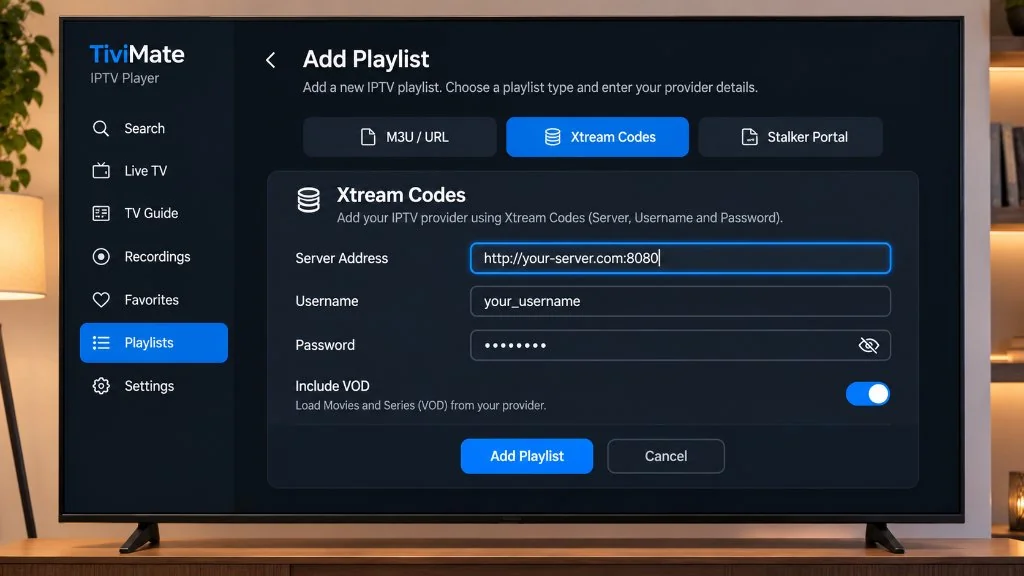
- Click Add Playlist on the TiviMate welcome screen.
- Choose Xtream Codes.
- Enter your Server Address (without a trailing
/), Username, and Password exactly as provided in your welcome message. - Ensure Include VOD is checked (requires TiviMate Premium to browse VOD inside TiviMate), then click Next.
- Name your playlist (for example,
BuyIPTV24X7 USA) and click Done. TiviMate fetches your channel groups and 7-day TV guide automatically.
For device-specific instructions and alternative players like IPTV Smarters Pro or XCIPTV, visit our BuyIPTV24X7 Firestick Setup Guide and Android TV & Box Setup Guide.
Five TiviMate IPTV Player Settings for Smooth 60fps Sports
Out of the box, TiviMate runs well, yet tweaking five settings inside Settings > Playback and Appearance makes channel switching noticeably faster and smoother during live sports:
- Buffer Size (
Settings > Playback > Buffer size): Set this to Small or Normal (avoid None on Wi-Fi). A small 2-to-3 second buffer absorbs minor wireless packet drops without visible stuttering. - Auto Frame Rate (
Settings > Playback > Auto frame rate): Enable AFR for both frame rate and screen resolution if your TV flickers slightly on switch. Matching your TV refresh rate to 59.94Hz or 60Hz eliminates motion judder on football and basketball broadcasts. - Hardware Audio & Video Decoders (
Settings > Playback): Keep Video Decoder on Hardware. If a specific 4K movie channel plays video with no sound, toggle Audio Decoder from Hardware to Software to downmix AC3/EAC3 audio cleanly. - Logo Priority (
Settings > Appearance > Logos): In recent 5.x updates, set Logos priority to Prefer logos from playlist (or EPG depending on your provider) so every US sports network displays crisp station badges inside the guide. - Playlist Update on App Start (
Settings > Playlists > Update interval): Set update intervals to Every 24 hours and disable “Update on app start” if you dislike waiting 5 seconds when launching the TV.
Pairing TiviMate with BuyIPTV24X7 USA Channels
A polished media player needs reliable, high-bitrate channels behind it. BuyIPTV24X7 pairs cleanly with TiviMate via Xtream Codes API, giving your Firestick or Android TV box:
- 18,000+ Live Streams & 100+ Premier US Networks: Full sports coverage (ESPN, FS1, CBS Sports, NBC Sports, NFL Sunday Ticket & RedZone, NBA League Pass, UFC, F1) in HD, FHD, and 4K 60fps. See the full USA Channels Lineup.
- Catch-Up TV Integration: Rewind up to 4 days (3-Month plan at $29.99) or 7 full days (6-Month at $44.99, 1-Year at $69.99, 2-Year at $119.99) right inside TiviMate’s EPG timeline.
- No Auto-Debit Traps: One-time passes starting at $11.99 for 1 Month, processed personally through our WhatsApp Support Desk with zero payment cards stored on the site.
Ready to Stream on TiviMate in 4K 60fps?
Compare all 1, 3, 6, 12, and 24-month passes or message our team for instant Xtream Codes setup.
Frequently Asked Questions
Does TiviMate IPTV Player include live channels or movies?
No. TiviMate is strictly an empty media player application. It contains zero built-in television channels, sports streams, or VOD movies. You must enter playlist credentials from an IPTV provider like BuyIPTV24X7 before anything plays.
Can I install TiviMate directly on Samsung, LG, or Roku TVs?
No. TiviMate only runs on Android TV, Google TV, and Amazon Fire OS. If you own a Samsung Tizen, LG webOS, or Roku television, either install a native player like IPTV Smarters Pro from your TV store or plug a $35–$45 Amazon Fire TV Stick into a spare HDMI port to run TiviMate.
Do I need TiviMate Premium to watch live TV?
No. The free version lets you connect one live television playlist and scroll the standard EPG grid. Upgrading via TiviMate Companion unlocks VOD movie/series sections, Catch-Up TV replay, Multi-view split screen, DVR recording, multiple playlists, and up to 5 devices per license.
How do I update TiviMate to the latest version on Firestick?
Open TiviMate, go to Settings > About, and select Check for new version. TiviMate downloads and prompts the official update directly on your screen without needing Downloader again.
Is TiviMate better than IPTV Smarters Pro for TVs?
For Android TV and Firestick remote navigation, most cord-cutters prefer TiviMate because its grid TV guide, customizable menus, and channel zapping feel closest to traditional cable. IPTV Smarters Pro remains essential if you watch on Samsung Tizen, LG webOS, iPhone, or Windows PC, where TiviMate is unavailable.