
IPTV Smarters Failed to Authorize: 7 Proven Fixes (2026)
Seeing the “IPTV Smarters failed to authorize” (or “Authorization Failed for above host”) message on your television screen means IPTV Smarters Pro reached your provider’s server successfully, but the server rejected your login request. In nearly every case, the root cause is a small URL formatting error, a credential typo from an on-screen remote keyboard, an active connection conflict, or a VPN IP block rather than a broken app.
Because you can test and fix almost all of these triggers in two to three minutes, there is rarely any reason to wipe your streaming stick right away. Work through the seven diagnostic steps below in exact order to pinpoint the block and restore live TV.
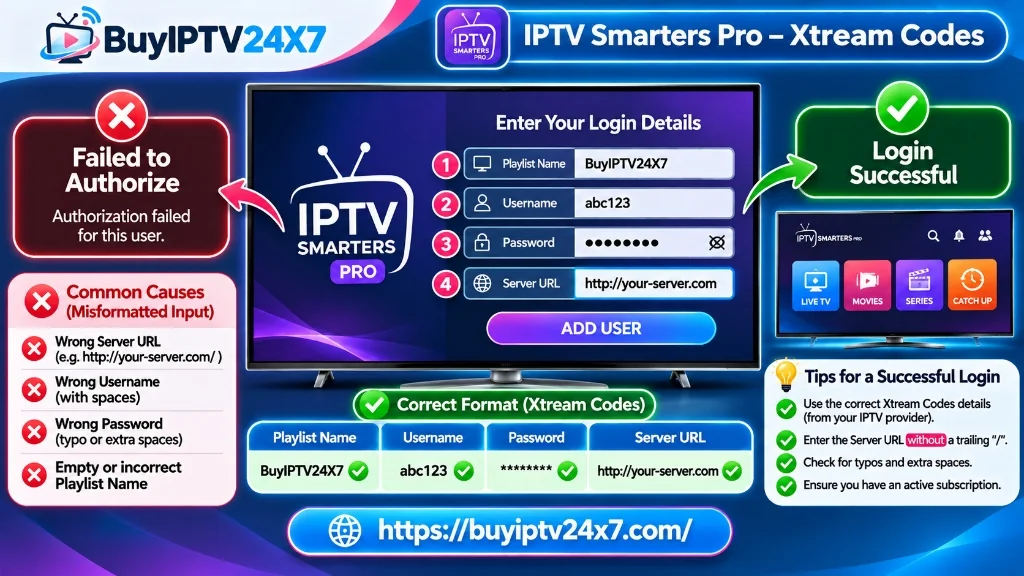
At BuyIPTV24X7, IPTV Smarters Pro is one of our most widely used apps across Firestick, Android TV, and Smart TVs, and our WhatsApp desk helps users fix this exact error daily.
Why IPTV Smarters Failed to Authorize Happens (Quick Diagnostic)
| Error Symptom on Screen | Most Likely Root Cause | Immediate Fix |
|---|---|---|
| Fails instantly after clicking Add User | Trailing / on URL, wrong http:// vs https://, or typo |
Remove trailing slash; retype carefully |
| Worked yesterday, suddenly failed today | Expired subscription pass or simultaneous device lockout | Check expiry date; close app on other TVs |
| Failed immediately after turning on VPN | Provider firewall blocks that VPN datacenter IP | Pause VPN or switch server city |
| Worked on phone, failed on Fire TV | Pasted M3U URL into Xtream Codes fields (or vice versa) | Match login tab to credential format |
| Fails even after fresh credentials | Corrupted local app cache or outdated Smarters build | Clear Cache/Data or switch to TiviMate |
Step 1: Audit Username & Password for Keyboard Traps
On-screen keyboards on Amazon Fire TV, Apple TV, and Smart TVs introduce subtle typing errors that are hard to spot from the couch. Check every character of your Username and Password before changing anything else:
- Hidden Trailing Spaces: Mobile copy-paste and Fire TV autocomplete frequently add a blank space after the final character of your username or password. Tap the end of each text box and press Backspace once if the cursor sits one space away from the last letter.
- Look-Alike Characters: Providers use randomized alphanumeric logins. Double-check lowercase
lversus uppercaseIversus the number1, as well as uppercase letterOversus number0. - Exact Case Sensitivity: Passwords are always case-sensitive, and most Xtream Codes usernames are case-sensitive as well. Auto-capitalization on the first letter of a Firestick input field is one of the most common hidden login blockers.
Step 2: Fix Server URL Prefix, Port, and Trailing Slash
Your Server URL tells IPTV Smarters Pro where to send the API authentication handshake. Three minor URL formatting mistakes account for a huge share of authorization rejections:
- Delete Any Trailing Slash: Enter
http://example-host.com:8080, neverhttp://example-host.com:8080/. A trailing slash creates a double-slash API call (//player_api.php) that many servers reject. - Match
http://vshttps://Exactly: Do not guess SSL. If your welcome message listshttp://, adding ansmakes the player query port 443 instead of port 80 or 8080, resulting in an immediate handshake timeout or rejection. - Verify the Port Number: If your provider specifies
:8080,:2095, or:80at the end of the domain, include the colon and digits exactly as given.
Step 3: Match the Correct Login Screen (Xtream Codes vs M3U)
IPTV Smarters Pro presents multiple login buttons on its welcome dashboard, and mixing up the two main formats always triggers an authorization failure:
- Login with Xtream Codes API: Choose this option when your provider gave you three separate values (Username, Password, and a short Server URL like
http://domain.com:8080). - Load Your Playlist or File/URL (M3U): Choose this option only when you received one long URL containing
get.php?username=...&type=m3u_plus. Never paste that entire long M3U link into the Server URL box inside the Xtream Codes screen.
If you need a visual reminder for your specific TV or streaming stick, follow the step-by-step instructions on our BuyIPTV24X7 Setup & Installation Guides or the Firestick Setup Walkthrough.
Step 4: Check for Simultaneous Connection Lockouts
Standard IPTV passes (including BuyIPTV24X7’s standard 1-Month through 2-Year passes) allocate 1 Active Connection. While you are welcome to install the app on multiple televisions or phones in your home, only one device can authenticate and stream at any moment.
If your partner is watching sports in the living room or if IPTV Smarters was left running in the background on an iPad, the server may block a second login attempt with an authorization error.
How to clear a stuck session:
- Open your other devices (phones, tablets, bedroom TVs).
- Force-close the IPTV app completely rather than simply turning the TV screen off.
- Wait 60 seconds for the server session timeout to reset, then click Add User on your primary TV.
Step 5: Test Your VPN Connection and ISP DNS
Network filtering works in both directions. Some IPTV providers run automated security rules that reject logins coming from well-known commercial VPN datacenter IP ranges, while some Internet Service Providers (ISPs) interfere with streaming server DNS lookups.
- If you use a VPN on your Firestick or router, turn the VPN off temporarily and retry the login. If it authorizes immediately, your VPN server IP was flagged; switch to a different US server city or dedicated IP option.
- If you are not using a VPN and the login fails across multiple devices on home Wi-Fi, test logging in using your smartphone’s mobile hotspot for 10 seconds. If it connects on cellular data but fails on home Wi-Fi, your ISP or router security shield (such as Xfinity Advanced Security or AT&T ActiveArmor) is blocking the server hostname. Switching router DNS to Cloudflare (
1.1.1.1) or Google (8.8.8.8) usually clears the block.
Step 6: Confirm Subscription Expiration & Server Updates
Sometimes the error has nothing to do with your TV settings. If a trial expired, a monthly pass reached the end of its term, or a low-tier reseller changed server hostnames without notifying customers, IPTV Smarters will throw an authorization failure immediately.
Verify your account status by messaging your provider directly. On BuyIPTV24X7, customers never have to hunt through dead forums or broken ticket systems; simply message our 24/7 WhatsApp Support Desk to verify line expiration or receive updated routing info in real time.
Step 7: Clear App Cache, Clear Data, or Test Another Player
If you verified your credentials, removed trailing slashes, tested off-VPN, and confirmed your subscription is active, local cache corruption inside IPTV Smarters Pro is the final suspect.
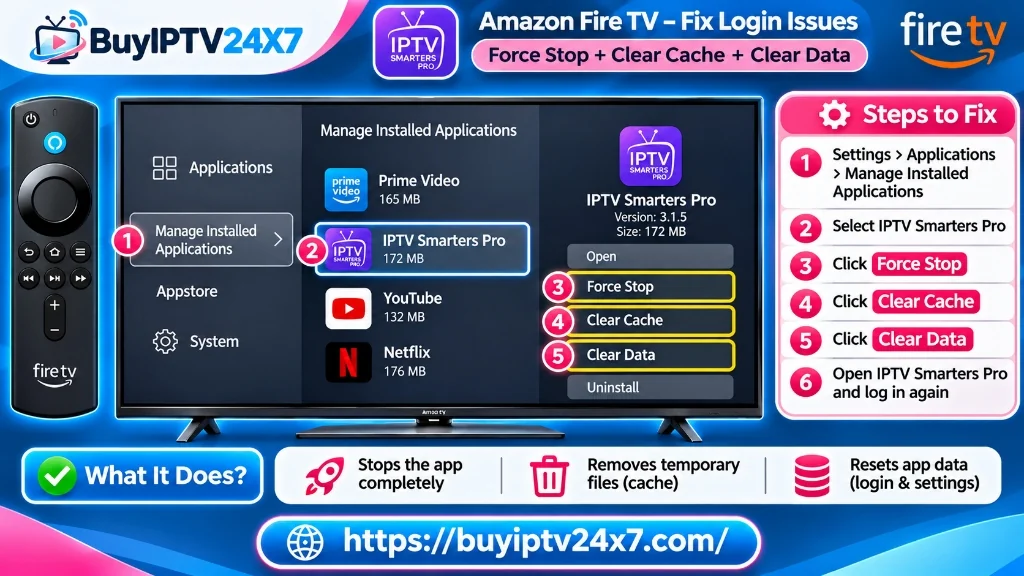
On Amazon Firestick & Android TV:
- Navigate to device Settings > Applications > Manage Installed Applications.
- Select IPTV Smarters Pro.
- Click Force Stop, then Clear Cache, and finally Clear Data (note: clearing data resets saved logins inside the app).
- Reopen the app, select TV view, accept permissions, and enter your Xtream Codes credentials cleanly.
Still Stuck? Upgrade to Direct WhatsApp-Supported Streaming
If your current provider disappeared, ignores support messages, or leaves you locked out during Sunday kickoff, switching to a responsive service saves hours of frustration.
BuyIPTV24X7 delivers 18,000+ live streams, 100+ premier US broadcast and sports networks in 4K/60fps, 7-day EPG, and personal onboarding over WhatsApp:
- 1 Month One-Time Pass ($11.99): Low-risk way to test stability on IPTV Smarters Pro or TiviMate.
- 1 Year Staff Pick ($69.99 / $5.83 mo): Save 51% with 7-day Catch-Up TV, 7-day refund policy, and priority WhatsApp setup help.
Need Instant Credential Verification or a Reliable Line?
Compare all 1, 3, 6, 12, and 24-month passes or message our WhatsApp Support Team right now.
Frequently Asked Questions
What does “IPTV Smarters failed to authorize” actually mean?
It means the app connected to your provider’s server domain over the internet, but the server denied access. Common triggers include wrong username/password characters, a trailing slash in the Server URL, using an active connection on another TV, a blocked VPN IP address, or an expired account.
Should I put a slash at the end of the Server URL in IPTV Smarters?
No. Always leave off any trailing / at the end of an Xtream Codes host URL (use http://domain.com:8080, not http://domain.com:8080/). That single extra slash breaks API path construction on most servers.
Can a VPN cause IPTV Smarters authorization errors?
Yes. Many IPTV servers block traffic originating from flagged datacenter IP ranges used by commercial VPNs. Disconnecting your VPN for a quick login test or changing to a different US server city confirms whether the VPN IP caused the block.
Why did IPTV Smarters work on my phone but fail on my Smart TV?
Two reasons cause this: either you have a 1-connection subscription and forgot to close the app on your phone before opening it on the TV, or your Smart TV app store hosts an older build of Smarters with stricter URL parsing. Always force-close the mobile app first and check our Samsung & LG Smart TV Setup.
Where can I check more troubleshooting answers?
Explore device-specific login notes on our Setup Guide, review common account policies in the BuyIPTV24X7 FAQ, or read our Public IPTV Playlist Reality Check.